
How to Activate Your WebGeniusLab Theme: Purchase Code vs. License Key
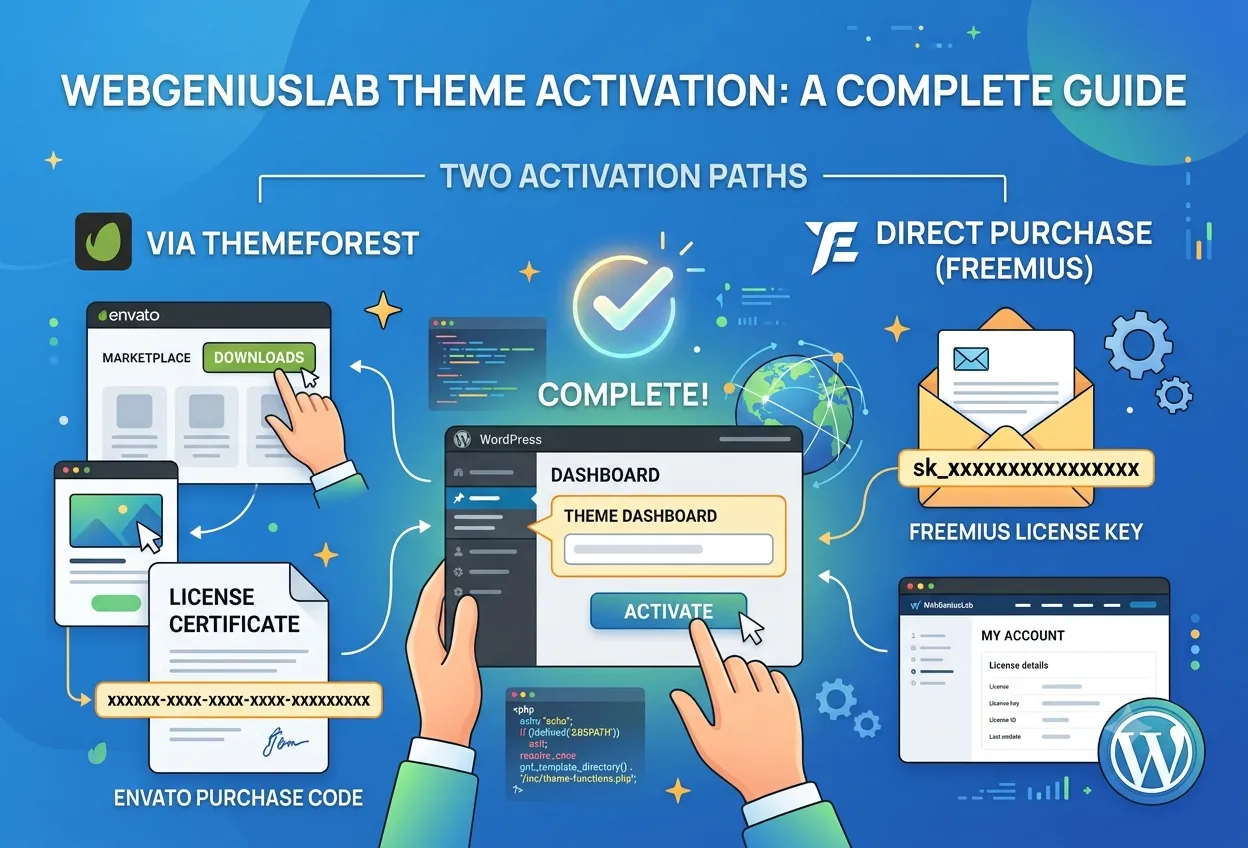
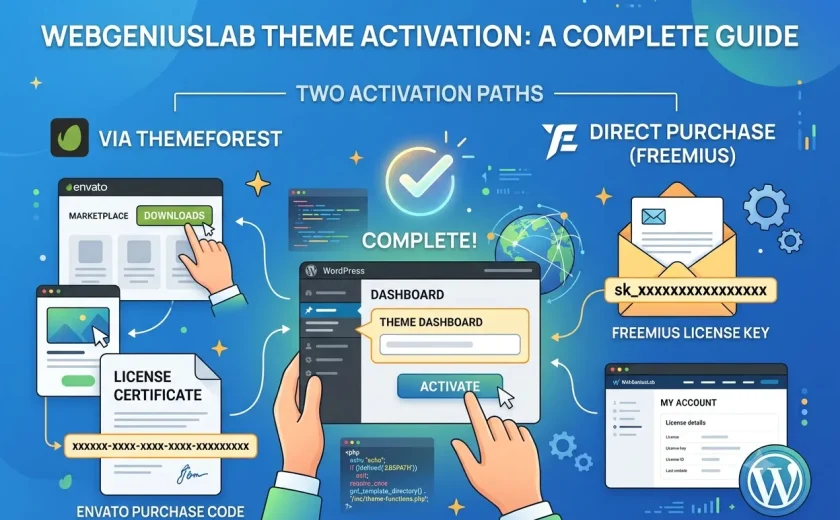
Finding your ThemeForest purchase code is the first step to activating a premium WebGeniusLab theme. WebGeniusLab themes are sold through two channels: ThemeForest (Envato marketplace) and our own website powered by Freemius. Each channel uses a different activation method — if you bought on Envato you’ll need your ThemeForest purchase code, and if you bought directly you’ll use a Freemius license key. This guide covers both; find the section that matches where you purchased.
ThemeForest Purchase: Using Your Envato Purchase Code
What Is a ThemeForest Purchase Code?
A Purchase Code is a unique identifier for your ThemeForest license. It looks like this:
xxxxxxxx-xxxx-xxxx-xxxx-xxxxxxxxxxxxEach purchase has its own code. Under a Regular License, one code is valid for one website only.
Where to Find Your Purchase Code
- Go to themeforest.net and log into your account.
- Click your profile avatar in the top-right corner.
- Select Downloads from the dropdown menu.
- Find the theme you purchased in the list.
- Click the Download button next to the theme.
- In the dropdown, choose License certificate & purchase code.
- A text file will open. Copy the value next to Item Purchase Code.
Note: Your ThemeForest purchase code is always in Downloads → License certificate & purchase code — not in any confirmation email.
How to Activate
Once the theme is installed, go to WordPress Admin → Appearance → Theme Dashboard. Paste your ThemeForest purchase code into the activation field and click Activate.
Direct Purchase: Using Your Freemius License Key
What Is a Freemius License Key?
If you purchased the theme directly from the WebGeniusLab website, your license is managed by Freemius — a dedicated licensing platform for WordPress products. Instead of a Purchase Code, you receive a License Key that looks like this:
sk_xxxxxxxxxxxxxxxxxxxxxxxxxxxxxxxxA single license key covers one website (single-site license) or multiple websites, depending on the plan you purchased.
Where to Find Your Freemius License Key
- Check your purchase confirmation email — the license key is included in the body of that email.
- Alternatively, log into your account on the WebGeniusLab website.
- Go to My Account → Licenses.
- Find the theme in the list and copy the license key.
Note: If you purchased via Freemius and can’t find the email, use the account portal on the WebGeniusLab website to retrieve your key at any time.
How to Activate
After installing the theme, go to WordPress Admin → Appearance → Theme Dashboard. Enter your License Key in the activation field and click Activate. Your site’s domain will be registered to the license automatically.
ThemeForest vs. Freemius: What’s the Difference?
Both channels give you the full theme and access to updates. The main differences:
- ThemeForest: purchase is managed by Envato, updates are downloaded from ThemeForest or via the Theme Dashboard after activation.
- Freemius (direct): license is managed on the WebGeniusLab website, updates are delivered automatically via the WordPress dashboard without any manual steps.
- Multi-site licensing: Freemius offers flexible multi-site plans; ThemeForest requires a separate purchase per site.
Frequently Asked Questions
My ThemeForest purchase code isn’t being accepted — what should I check?
- Make sure there are no extra spaces before or after the code when pasting.
- Confirm you’re entering the code for the correct theme.
- If the code is already registered to another domain, a new purchase is required.
- If the problem persists, contact support and include a screenshot of the Downloads page.
My Freemius license key isn’t working — what should I check?
- Verify you copied the full key without extra spaces.
- Check that your license hasn’t reached its site activation limit in the account portal.
- Make sure you’re on the correct theme — each product has its own license key.
- Contact support if the issue persists — include your order email address.
Can I transfer a license to a different domain?
Yes. For ThemeForest licenses, contact Envato support. For Freemius licenses, log into your account on the WebGeniusLab website, deactivate the license on the old site, and then activate it on the new one.